
Permission denied errors after a website move usually point to broken Linux file ownership. Setting permissions to chmod 777 can leave the site exposed without fixing the underlying ownership problem. Every file landed on the new server intact. Yet the web server account cannot open one of them.
That gap is where most people reach for the widest setting and hope the errors vanish. At Basic Linux, we’ve watched that one command undo months of server security in seconds.
This guide shows you how to read ownership, what each permission does, and how to repair access safely. Let’s get into it.
Why Does File Ownership Break When You Move a Website?
Ownership breaks because moved files arrive owned by the account that copied them, not the web server user. If you unpack an archive over SSH as root, root owns every file. Your web server runs as www-data or apache, so it can’t open files that belong to someone else.
Unix-like systems run more than 90% of websites with a known operating system, so this problem is common
Here’s the thing: Permission bits are often perfectly fine while the browser keeps returning a 403. A file at 644 still lets the owner read and write it. But the group changed during the copy, so the server account drops into Others and gets refused.
Your transfer method decides most of this. FTP clients hand ownership to your login account. Rsync with the archive flag keeps whatever the old system recorded (rarely what the new box expects).
Shared hosting adds a twist: the control panel creates the site under one account while you upload as another. A Friday arvo (Aussie slang for afternoon) migration goes sideways fast when nobody wrote down which user the web server runs as. We write down that detail before every move now.
Understanding Linux File Permissions: Owner, Group and Others
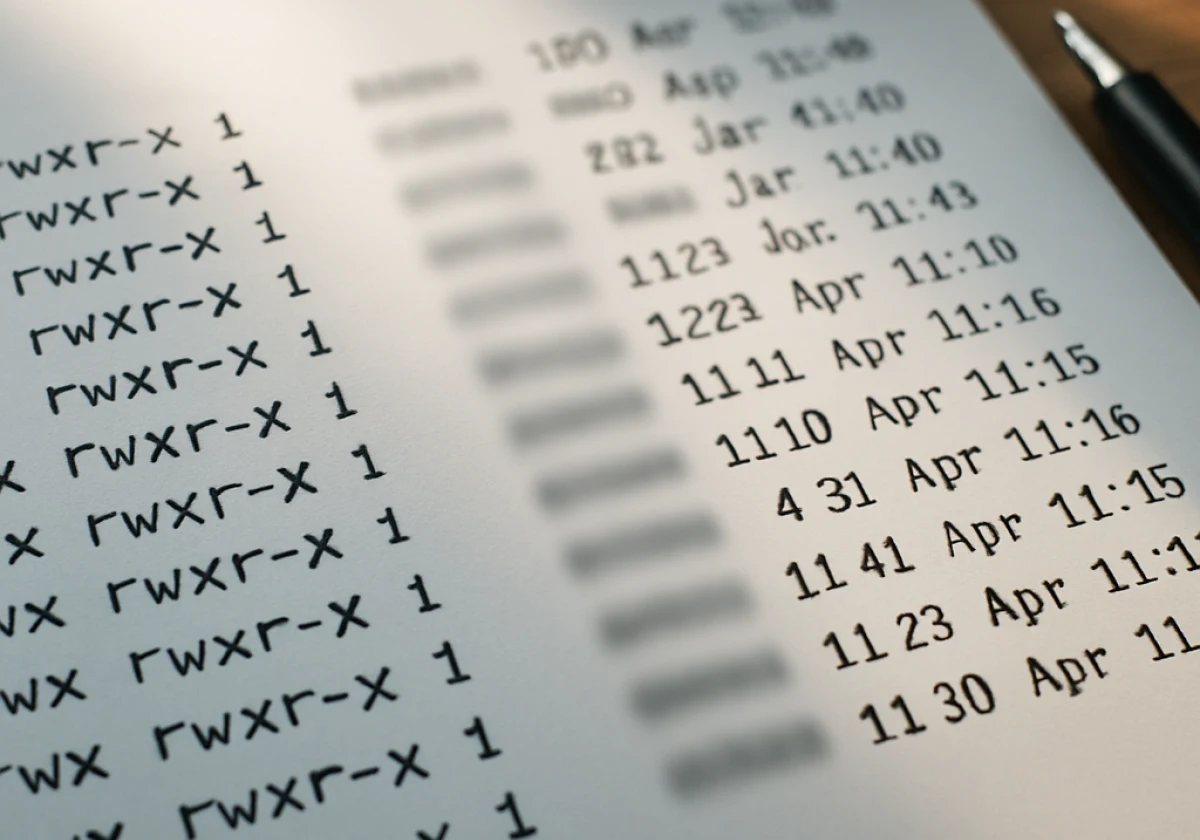
Most access errors make sense once you can read one line of output. Linux file permissions look like random code until you know the pattern. Each line shows the file type first, then one set of flags for owner, group and everyone else.
Read, Write and Execute: The Three Types of Permissions
There are three types of permissions on any file or folder. Read permissions let a user open a file and view the contents. On a folder, read lets them list the names inside.
Write lets that user change the file. On a folder, it lets them create or delete entries. Execute is the odd one out. It runs scripts, and on a folder it lets you open it with cd.
Bottom line: A folder needs read and execute together before anyone can browse it.
How the Owner and Group Control Access to Files and Directories
Linux stores an owner and group for every file. It checks if you’re the owner first, then whether you’re in the group (others come last).
That order catches people out. Owner permissions always win, even when they are stricter than the group setting (no, a generous group cannot rescue a locked-out owner).
Add the web server account to the right group. Using chgrp to fix group ownership opens access for several accounts at once.
What Mode Numbers Like 644 and 755 Really Mean
Mode numbers are those same flags written as digits: read 4, write 2, execute 1. Added up per category, 644 gives the owner read and write permissions, then read for the group and others.
Folders take 755 because the owner needs the execute bit (4+2+1) to enter them. Honestly, we still count on our fingers. Four plus two plus one beats guessing on a live server.
Using the chown Command and chmod to Repair Access Safely

These two tools restore access in seconds without weakening your system. After years of fixing this on live servers, we find three commands clear nearly every case.
Start by assigning the files to the right owner, then apply the appropriate permissions:
- Start With Ownership: The
chmodcommand cannot fix permissions if the server does not own the file. Runchown -R www-data:www-data /var/www/yoursitefirst to assign the entire directory tree to your web server. - 755 For Directories: Folders need the execute bit, so
find . -type d -exec chmod 755 {} ;sets the correct directory permissions. For files, usefind . -type f -exec chmod 644 {} ;to set them to 644. - Small Fixes Without Maths:
chmod g w uploadsadds write permission for the group while leaving other permissions unchanged. Use symbolic mode for one-off changes when you don’t need to update the entire directory tree.
Check your work with ls -l before moving on to confirm the new ownership and permissions. Keep recursive commands pointed at your site folder, since accidentally running them across system paths can affect files used by running services.
chmod 777 Leaves Every File and Directory Wide Open
Running chmod 777 hands every user on your server full write access to your website files. Compare the two settings before you type that command. The two settings are one digit apart but very different in risk.
Before using it as a quick fix, compare it with the permissions a typical website needs:
| Mode | Who can write | What it means for your site |
|---|---|---|
| 644 files, 755 folders | The owner only | Pages serve, uploads stay protected |
| 777 everywhere | Every user and process | Any script on the box can rewrite your files |
Keep 777 for temporary testing rather than a live website. If your site only works after you set permissions to 777, check the file and directory ownership instead. Assigning them to the correct owner usually fixes the access problem without giving every user and process write permission.
Permission Denied Linux Errors: Check the Owner Before Changing Permissions
A permission denied Linux message after a website move is almost always an ownership question wearing a permissions costume. Read the listing before changing permissions, and the right fix usually names itself. The first field names the owner, the second names the group, and that owner-group pair drives every check.
So run chown before chmod. Keep files at 644 and folders at 755, and your site serves cleanly again. Test the site after each change.
Sensible Linux file permissions are boring, and boring is the goal. By the time you finish, the file’s owner should be your web server account.
Ready to sort out permissions without the guesswork? Visit Basic Linux for plain guides on Linux file ownership, mode numbers and everyday Linux administration.